5 Simple Steps to a Clean and Organized Email Inbox
Step 1: Make Your Email Goals as Specific as Possible
How you want your inbox to look varies from person to person. Want to get on your way to changing the shape of your email inbox, consider how you want to clean it up. This can come in the form of knowing how many emails to keep, what emails to keep, or knowing what emails to let in to your inbox on a new daily basis.
Measurable goals act as a good guide for how to approach your emails. For example, you might set a goal to keep your inbox below 50 emails. This would result in a regular review of emails to keep only what’s necessary. Managing how often you check your email will also help keep your inbox from overflowing. Assigning times during the day to check your email will help keep a routine of how often you check it (and help you keep from checking more often).
Limits can also apply to how much time you spend on emails. For instance, you can spend 30 minutes every day to clear out the most important emails and move the others to a more convenient folder. Your email can be organized and clean by using labels and folders to help you see the status of the emails.
With clearly delineated goals and more disciplined practices, laying the foundation for an email system that matches your needs and promotes productivity becomes a possibility.
Step 2: 'One Touch Rule'
The 'One Touch Rule' is a simple yet effective principle for those trying to achieve an orderly email inbox. Essentially, the rule is to touch each email in your inbox only one time which means you have to make a decision and take the necessary action. By the time you have already read the email, you should know whether you have to respond to it, file it, or delete it. This way you can cut down a lot of the unnecessary backlog from your inbox.
Consider the scenario where you have just received email number 254 and you have to categorize it into one of four actions: you need to respond to the email, so you do it promptly; the email includes information you might use later, so you archive it; the email is dumb, so you delete it.
One Touch Rule makes email management a whole lot easier. The rule tends to cancel out the behavior of rewiring emails, so you are more focused on the tasks you have to complete as opposed to focusing on an email list that has gotten way out of control. This rule fosters the behavior of making decisions and ushers in a quicker manner of dealing with most communication, which is what the professional world needs.
Using this strategy to create a system for your email creates a productive environment while decluttering your email. With this system, inbox management will become less tedious with the one touch rule. This encourages a proactive work system and will impact your work speed and effectiveness with the one touch email rule.
Step 3: Use Folders, Labels, and Filters Effectively
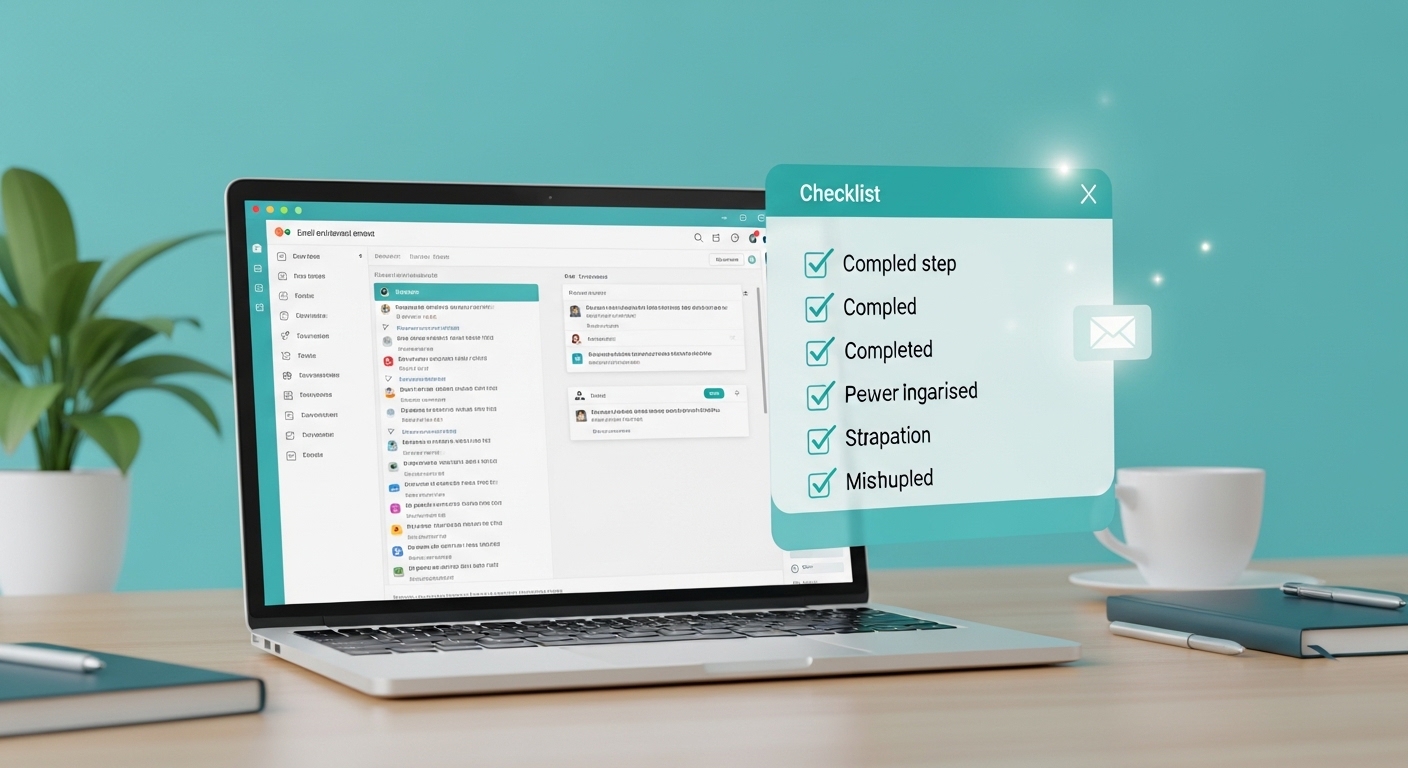
This system encourages the best email organization by using labels, folders, and filters. This system also aids in decluttering your inbox. It’s a good idea to create your email folders first by labeling them with your department, projects, or a priority level. Your email folders can also include your Subscriptions, Personal, and Receipt folders.
Feel free to subfolder in your email folders. For instance, under your Work folder, you can create a subfolder for each client or projects. With this system, you will be able to access and navigate to your most important emails more directly.
A positive addition to your email organization is the use of the labeling system in conjunction with the folder system. It’s categorized in your email folder, but with the right label system, it can also be categorized in a more useful way. For instance, an email can also fall under the Follow Up or Urgency label. Immediate tasks will be prioritized more with this organization.
An excellent way to automatically sort your emails is by having email filters set up. Most email platforms offer users the ability to set criteria so that when incoming emails are received, they are automatically sorted to a folder or labeled. This sorting can be based on either the email's origin, subject line, or key phrases found within the email. If you go to your email platform and find the section that says either “Filters” or “Rules,” you can begin sorting your emails. You can write rules that guide the way you want to organize your emails. A rule that states email from a particular sender should automatically be moved to a particular folder is an excellent way of reducing the amount of clutter in an inbox.
When using rules to organize your emails, keep it simple. If you have complicated, contradictory categories, the system can quickly backfire on you. You can write filters, set labels, and configure folder, but you must adjust them regularly to ensure they remain a part of an efficient organization system. This should be the system you engage with on a daily basis, therefore, it is your duty to ensure it remains clean and organized.
Step 4: Set reminder to perform maintenance on your inbox.
Having a clean inbox is not a one-time task. After one-time decluttering of your inbox, the clutter can quickly come back if you do not take ongoing actions that effectively manage your new incoming emails. An excellent way to sustain a clean inbox and a method to organize emails to ensure business or personal emails do not get lost is by performing inbox maintenance. Set periodic reminders to maintain organization in your inbox.
Optimize your daily routine to improve your productivity. Designate recurring times for your email management. Specific times give you and your email system structure. Consider dedicating twenty minutes every Friday, or an hour every Monday, to your emails. The frequency and duration of your email management should fit your unique workflow. A consistent email management routine produces an organized inbox.
When you're ready to clean your inbox, do email management tasks in this order. Start with Read. Check your inbox for any unopened emails. Open and address the emails that you can (e.g. answer emails that need answering, make arrangements per requests, etc.). From inbox to outbox. Delete the emails that no longer serve you and your inbox. Answer the emails when you get around to it and then move them to other folders. The other email folders that you're forgetting you have or are too disorganized to use.
To improve the productivity of your email, consider this. Everyone gets emails they don't want (e.g. spam, offers, subscriptions, etc.). Use your email management routine to stop the emails you don't want from being in your inbox. Then personal and work emails will be in your inbox. It's increased productivity that's organized.