How to Recover Forgotten Email Password (Gmail, Yahoo, Outlook)
Why is Email Security Important to a Person?
Because everything is connected online, email security helps protect the private things. People email invoices, statements, and other important sensitive data to each other. Weak email security, like a bad password, can get people into someone's email account to steal or sell the information. These information breaches can lead to losing thousands of dollars, or even identity theft. Their protected information can get sold to a competitor. It is a good idea to keep the email security tight with security measures implemented.
When clients and employees do not protect their email address with emails that have good security, they allow hackers to email their clients and employees demanding their passwords. It can get really ugly and bad if the email was compromised because of domains. Things rely heavily on emails. Once the email gets compromised, everything is compromised, and things can quickly get really and even bad.
To keep everything in a good state, different emails should be used for business and personal. It helps because the email is used for everything online. Email gets protected. If email is secured, the online email remains intact. If everything gets compromised, the passwords are protected. The things keep password tips is really important.
Ultimately, effective email security requires both users and businesses to be proactive to protect email accounts from breaches. And, when individuals and groups become aware of email security, it equips them with skills to develop secure methods of password recovery, minimizing breaches to access and protect confidential data.
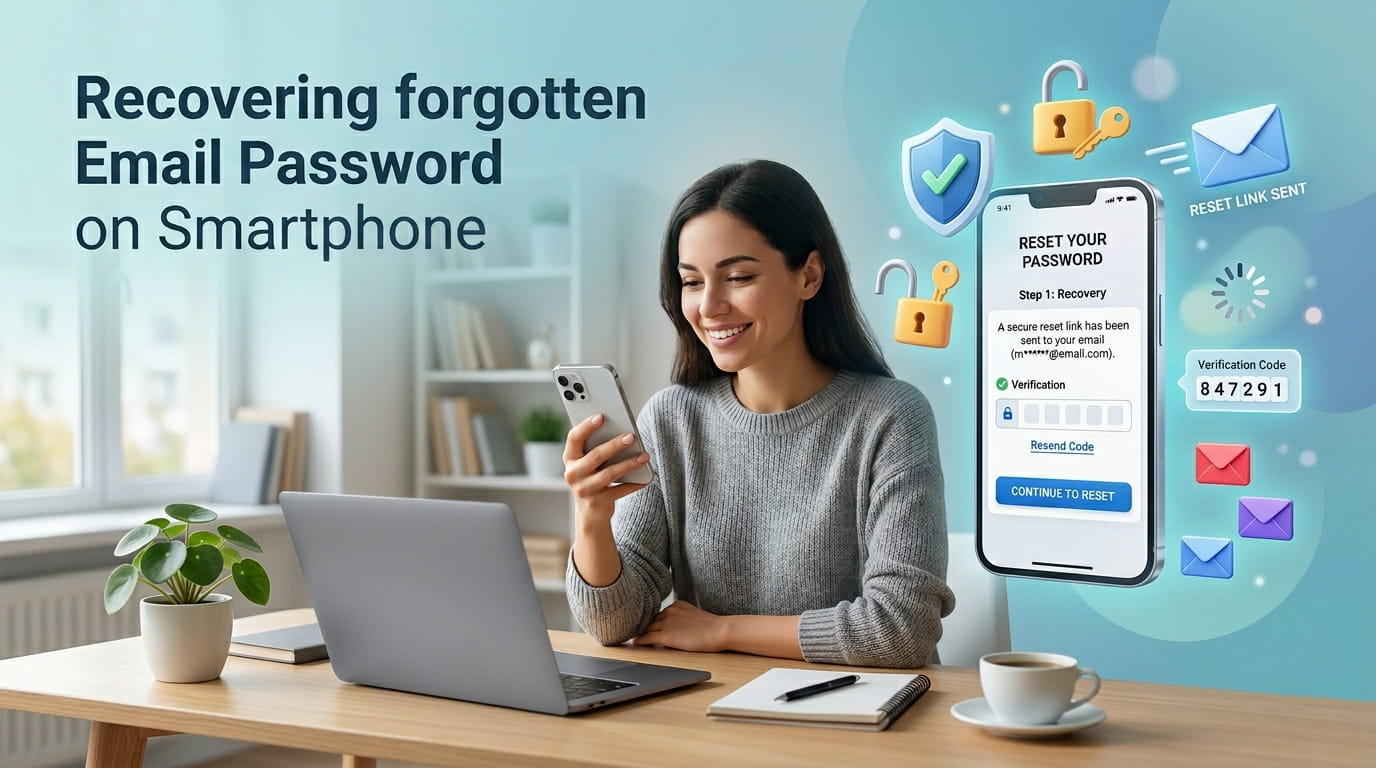
Outlined below are the steps for recovering your Gmail password.
If you lost your password and want to regain access to your Gmail account, you have to follow secure steps given by Gmail.
1. You must access the Gmail login page to begin. Type in your email and press "Next."
2. You will be forward to a new page and you must select "Forgot password?"
3. You will be given a choice of recovery methods and you must select the method you previously set up in order to have a account recovery. You could receive your verification through your recovery email, or via phone call or text.
4. Provide the verification through the field on the Gmail site and press "Next." You will be ensured your identity and confirmed that you own the account.
5. When verification is successful, you will be prompted to set your new password. Your new password needs to be sufficiently complex, and it should be strongly different from your prior passwords. Include letters, numbers, and symbols. As a best practice, Google recommends that new passwords contain more variety than old ones.
6. Once your new password is set, you will be able to log into your Gmail account. For safety, you should also set your new recovery options. This can be done through your settings to add new phone numbers and/or new email recovery options.
These steps will help you recover a nothing more than a simple Gmail password with no unnecessary challenges. Recovery options should always be kept as current as possible. Out of simplicity, always update recovery options.
Step-by-Step Instructions for Yahoo Password Recovery
Follow this process for Yahoo. These steps are simple, and designed to be quick for Yahoo users. First, head to the Yahoo sign in helper. Once you've arrived, you will be required to enter your Yahoo email or account phone number.
Submit the required information and wait for Yahoo to suggest recovery options. Your options may include receiving a verification code to your registered phone or a code to your backup email. If you have access to one of the recovery methods, select that option for your next steps.
After selecting either SMS or email, a verification code will be received, which will then need to be input to the Yahoo verification page. Identity verification is important to Yahoo, and this is a step for that. After the code has been confirmed, users will be able to move onto the page to make a new password. Yahoo encourages users to have a unique, strong password for company accounts. Passwords should be remembered, but not similar to the previous password.
There may be many issues for users who do not have access to the listed recovery methods. Yahoo does have a secondary method. This is answering the security questions that were set during creating the account. For recovery, users will have to answer the set questions to answer the security questions to then gain access to the account.
There may be times when users might have a few setbacks or would get locked out after there have been a lot of tries. Users can either try after a certain time or ask Yahoo costumer service.
Yahoo provided this to users safely to be able to easily access their accounts, but while maintaining their account structure. To increase the chances of accurately recovering a lost Yahoo password, this should be the first method tried.
How To Recover Outlook Email Password
If you need to recover your Outlook email password, you can follow a few steps to make the process as easy as possible. Microsoft offers a few solutions for people who need to recover their account. The easy first step toward email recovery is to find your reset password option on Microsoft accounts. This is a useful tool for people who can’t remember their password and need a little reset help.
When you get to the reset password webpage, you’ll see some options. Go to the option that says, “I forgot my password” and select the “Next” button. Then you’ll enter your email linked to the Outlook account. Watch what you type to avoid making mistakes. When you have entered your email address, you’ll need to do a little bit of work to verify your identity with some of the options you have set up to help recover your account.
You may get a verification code sent to your phone or a different email address. If that’s the case, when you get the code, complete the verification process by typing the code in the box provided. If you don’t have options to help with recovery, pick “I don’t have any of these,” and see what else is available. There are security questions and you may be asked to share some private information that is completely unique to you to help you recover your account.
Upon successful identity verification, follow the prompts to set a new Outlook password. Selecting a strong password that integrates letters, numbers, and various symbols will maximize security. After completing these steps, store the password where it will always be accessible to you. When you log in to Outlook, it may be advisable to adjust the recovery options. This will prevent similar incidents from arising in the future. If you follow these instructions, it will greatly simplify the recovery of your Outlook password and email.